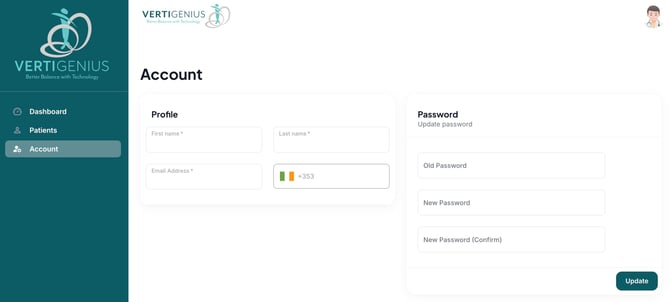
To change your password in the Vertigenius Clinician Portal, follow these steps:
1. Log In: Start by logging into your Vertigenius Clinician Portal.
2. Access the Account Menu: On the left-hand side menu bar, click on the "Account" menu item.
3. Navigate to Change Password: Within the "Account" tab, locate the option to change your password.
4. Enter Your Credentials:
- Input your "Old Password".
- Enter your "New Password". Ensure that your new password meets the following criteria:
- At least 12 characters long
- Contains at least one uppercase letter
- Contains at least one lowercase letter
- Includes at least one number
- Has at least one supported symbol (e.g., ! # $ % £ * - ? @ _ | ^ ~ . :)
5. Confirm Your New Password: Re-enter your new password to confirm it.
6. Save Changes: Click the "Update" button located at the bottom right of the screen to save your changes.
7. Tip for Visibility: If you are using a private computer and want to see your password as you type, select the 'show' icon next to the password field.
If you encounter any issues during this process, please reach out to our support team for assistance.