
Select the ‘Patient’ tab on the left of the screen and select “Add New Patient” (Figure 5).
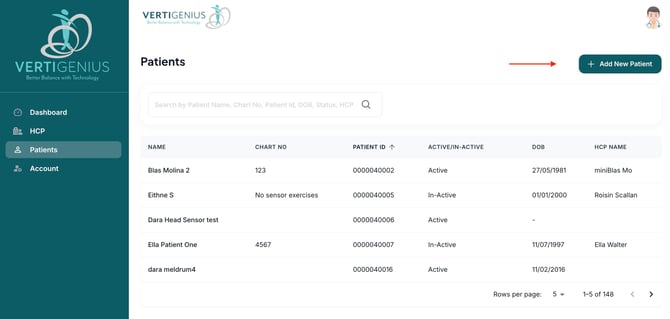 Figure 5: Adding a patient
-
Entering Patient Details
After selecting Add Patient the Add Patient dialogue box will open (Figure 6). Some patient details are optional, the fields with asterisks are mandatory. A medical record/chart number or other unique identifier (such as a clinic number you assign your patient) can be added. The patient’s name needs to be entered and the icon for Gender selected.
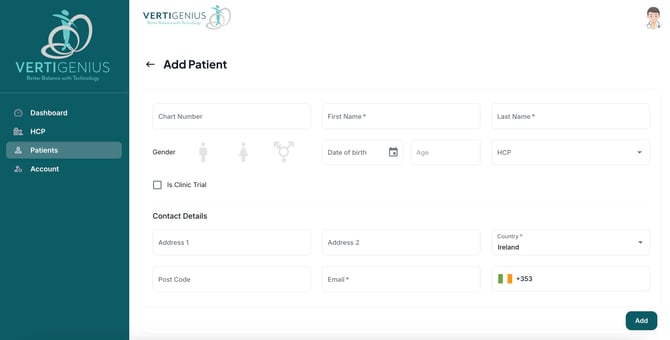 Figure 6: Adding patient details
To enter the patient’s Date of birth:
- Select the calendar icon, then select month/year which will display year first.
- Select the year of birth
- Select the month
- Select date
The patient’s age will automatically calculate
The patient can be assigned to a HCP using the drop-down menu in the HCP dialogue box. Note, the HCP must be set up via the master clinic logon details provided when the clinic is onboarded to Vertigenius™.
Now enter the patient’s email and patient’s mobile/cell phone number. The patient’s email is required for the following reasons;
- For instructions to be automatically emailed to the patient about their log on details and to provide a secure password
- To provide instructions to the patient on how to download the Vertigenius™ app
- To enable Subjective assessments to be sent to the patient (for them to details on personal goals, problems and symptom burden (VAS and DHI).
Note that the patient phone number is one of the passwords they will need to use, and the email is where the patient gets initial instructions on how to use the app.
Select ‘Save’ to automatically create the patient. This will enable Vertigenius™ to send a welcome email to the patient. Vertigenius™ will then automatically create a unique ID and a details page for that patient.